Introduction
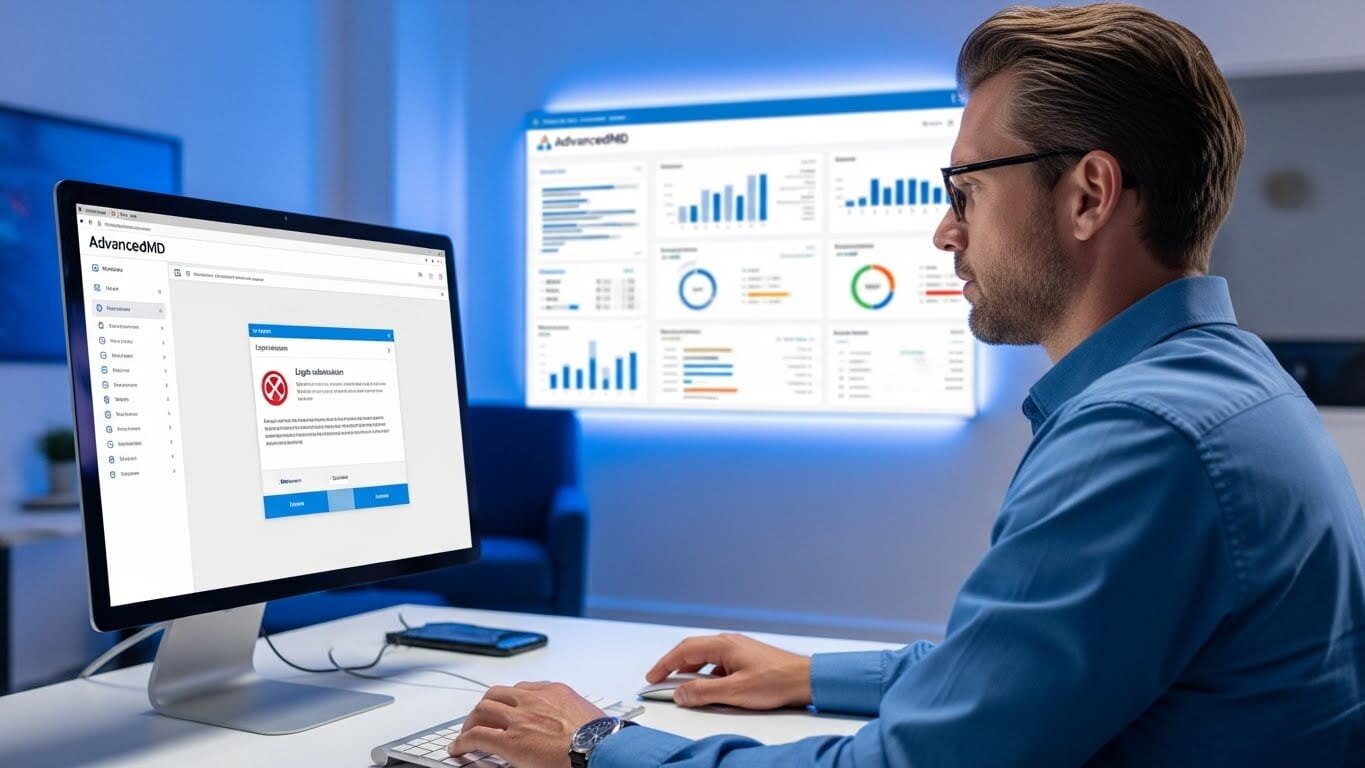
AdvancedMD is one of the most widely used cloud-based practice management and electronic health record (EHR) platforms in the United States. It supports medical billing, scheduling, telemedicine, patient portals, and clinical documentation. Because of its central role in daily operations, any login issue—no matter how small—can disrupt workflows, delay patient care, and interrupt billing activities.
This comprehensive troubleshooting guide explores the five most common AdvancedMD login issues, why they occur, and how to resolve them efficiently. Whether you are a provider, medical biller, administrator, or IT support staff member, this step-by-step resource will help you diagnose and fix login problems quickly, ensuring your practice stays productive and compliant.

===========================================
1. Incorrect Username or Password Errors
===========================================
This is the most common issue users encounter when attempting to log in. AdvancedMD uses strict authentication rules to protect patient information, meaning even a small mistake can trigger an error.
Causes
- Typing errors (case sensitivity, missing characters)
- Recently reset passwords not updated in password managers
- Expired passwords
- Account locked due to too many failed attempts
Solutions
1. Verify Case Sensitivity
Passwords in AdvancedMD are case-sensitive. Ensure that:
- Caps Lock is off
- No accidental spaces are included
2. Use the “Forgot Password” Feature
Resetting the password often resolves the issue immediately.
Admin users may need to unlock accounts manually.
3. Check Password Expiration
AdvancedMD requires periodic password updates for HIPAA compliance.
4. Contact the System Administrator
Admins can:
- Unlock accounts
- Reset credentials
- Verify whether the username is active
Prevention Tips
- Use a secure password manager
- Update passwords before expiration alerts
- Avoid repeated failed login attempts
===========================================
2. Two-Factor Authentication (2FA) Failures
===========================================
Two-factor authentication is required for all AdvancedMD users for enhanced security. However, 2FA issues commonly prevent successful login.
Causes
- Incorrect 2FA code
- Delay in receiving authentication SMS or email
- Authenticator app not synced
- Incorrect time settings on mobile devices
Solutions
1. Confirm Code Accuracy
Codes expire quickly—enter them within the valid window.
2. Check Device Time Sync
Authenticator apps require correct system time.
Enable automatic time settings on your device.
3. Resend Verification Code
If SMS/email delays occur, click “Resend Code.”
4. Use Backup Authentication Methods
If your device is unavailable, admins may:
- Temporarily disable 2FA
- Provide backup codes
Prevention Tips
- Keep authenticator apps updated
- Ensure strong mobile signal or WiFi connection
- Enable automatic clock synchronization
===========================================
3. Browser Compatibility and Cache Issues
===========================================
AdvancedMD is cloud-based and works best in modern, updated browsers. Browser-related issues can mimic login failures.
Causes
- Outdated browser
- Corrupted cache or cookies
- Extensions blocking scripts
- Unsupported browsers
Solutions
1. Use a Supported Browser
Best options include:
- Google Chrome
- Microsoft Edge
- Mozilla Firefox
Avoid Internet Explorer, which AdvancedMD no longer supports.
2. Clear Cache and Cookies
Old cache data can block login attempts.
Clear your browser’s:
- Cached files
- Cookies
- Saved site data
3. Disable Browser Extensions
Extensions like ad-blockers or script blockers may interfere.
4. Open in Incognito Mode
Incognito mode disables most extensions and cached files.
Prevention Tips
- Update your browser weekly
- Avoid storing login pages as outdated bookmarks
- Keep extensions vetted and minimal
===========================================
4. Network and Connectivity Problems
===========================================
Since AdvancedMD is cloud-hosted, stable internet access is essential.
Causes
- Weak Wi-Fi signal
- VPN conflicts
- Firewall restrictions
- Network security filters blocking AdvancedMD URLs
Solutions
1. Check Internet Speed
Minimum recommended speed:
- 10 Mbps download
- 5 Mbps upload
2. Restart Router or Switch Networks
Sometimes a simple network refresh resolves the problem.
3. Disable VPN Temporarily
VPNs may route traffic through restricted geographical zones.
4. Contact IT Support to Whitelist URLs
AdvancedMD requires specific domains to be accessible.
Prevention Tips
- Use hardwired Ethernet when possible
- Maintain strong, secure Wi-Fi
- Keep a backup network (hotspot, secondary ISP)
===========================================
5. AdvancedMD Server or System-Wide Outages
===========================================
Although infrequent, outages can occur due to maintenance, updates, or unexpected disruptions.
Causes
- Scheduled system maintenance
- Cloud service outages
- High traffic volume
- Software updates
Solutions
1. Check AdvancedMD System Status Page
This page often lists:
- Downtime updates
- Maintenance schedules
- Outage alerts
2. Contact Support
AdvancedMD support can confirm:
- Whether your region is affected
- Expected resolution time
3. Avoid Multiple Login Attempts
Repeated attempts may trigger temporary security blocks.
Prevention Tips
- Plan critical work outside scheduled maintenance windows
- Subscribe to AdvancedMD outage notifications
- Use downtime workflows for essential operations
===========================================
Bonus: Administrator-Level Solutions
===========================================
For IT administrators, resolving login issues may require:
1. Reviewing User Access Levels
Inactive or suspended accounts cannot authenticate.
2. Checking Security Policies
Password expiration frequency and 2FA enforcement may block access.
3. Confirming Network Whitelisting
Ensure allowed URLs include:
- *.advancedmd.com
- Required authentication endpoints
4. Monitoring User Logs
Identify repeated failed logins or suspicious activity.
===========================================
Why These Issues Occur in Healthcare IT Environments
===========================================
Healthcare systems must comply with strict regulations like HIPAA.
This means:
- Strong password requirements
- Mandatory 2FA
- Session timeouts
- High-level encryption
- Strict firewall settings
While these safeguards prevent breaches, they often complicate user access.
===========================================
Conclusion
AdvancedMD is a powerful healthcare IT system, but login issues can disrupt essential workflows across clinical, administrative, and billing departments. By understanding the five most common login problems—credential errors, 2FA issues, browser problems, network restrictions, and system outages—organizations can quickly restore access and maintain productivity. Proactive IT management, staff training, and system monitoring ensure that users experience fewer disruptions and better overall platform performance.
This troubleshooting guide empowers users and IT leaders to keep AdvancedMD running smoothly, protect patient data, and support uninterrupted healthcare delivery.